
These tutorials are best viewed in “720p” and “fullscreen.”
Don’t let adding videos to your website overwhelm you; it’s actually pretty easy. The following instructions will be for those of you using WordPress to host your website and Oculu as a video platform.
The first thing you will need to find is the Header Script code. Log in to your Oculu account, and you can find this code by clicking on the “videos” tab and then clicking on the link to the video that you wish to display on your site.
Scroll down till you see the heading “Insert Video.” Copy the code found directly underneath “Step 1: Header Script.”
Then log in to your WordPress site to find the location where you will paste the code.
To the left of your homepage click on “Appearance,” and then click on “Editor.” On the right side of the page click on “Header.” You will be taken to a lengthy code display under the heading “Twenty Ten: Header (header.php). Here’s where you need to be careful. You must paste your Header Script code in a particular spot inside this section. To find this easily, use the search tool by pressing Command F. Type /head into the search box and then scroll down about halfway down the code display box till you see the highlighted on the left side. Right above is where you paste your Header Script code. Click on “Update” to save the changes. The hardest part is over!
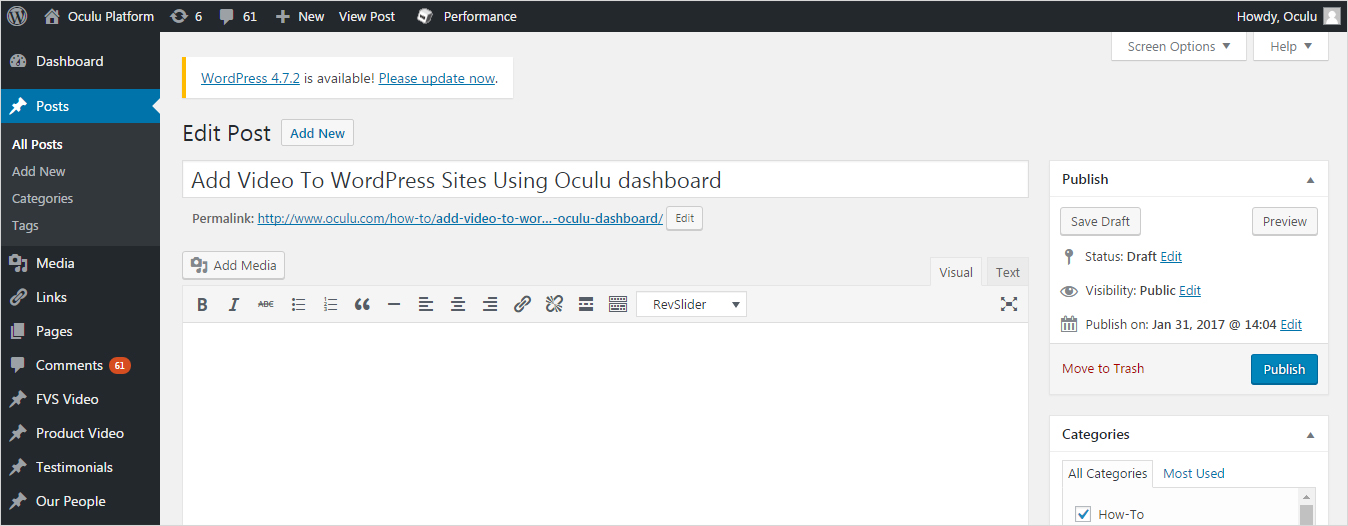
Next, go to the editing section of WordPress to find the location where you will need to paste two additional codes. Click “edit” for the section of your site that you want your video to be seen. Go back to Oculu and find “Step 2: Choose How You Would Like Your Video to Play.”
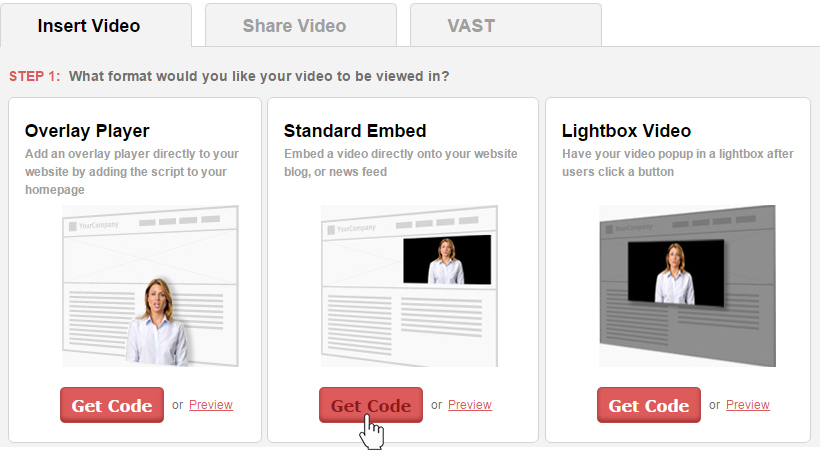
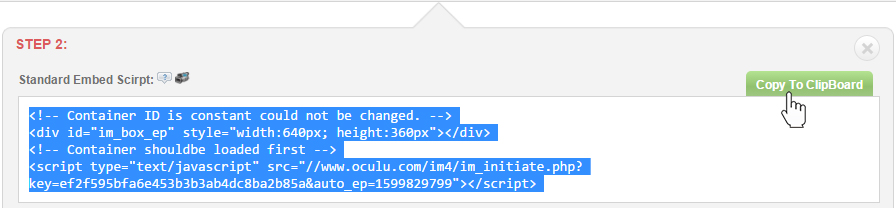
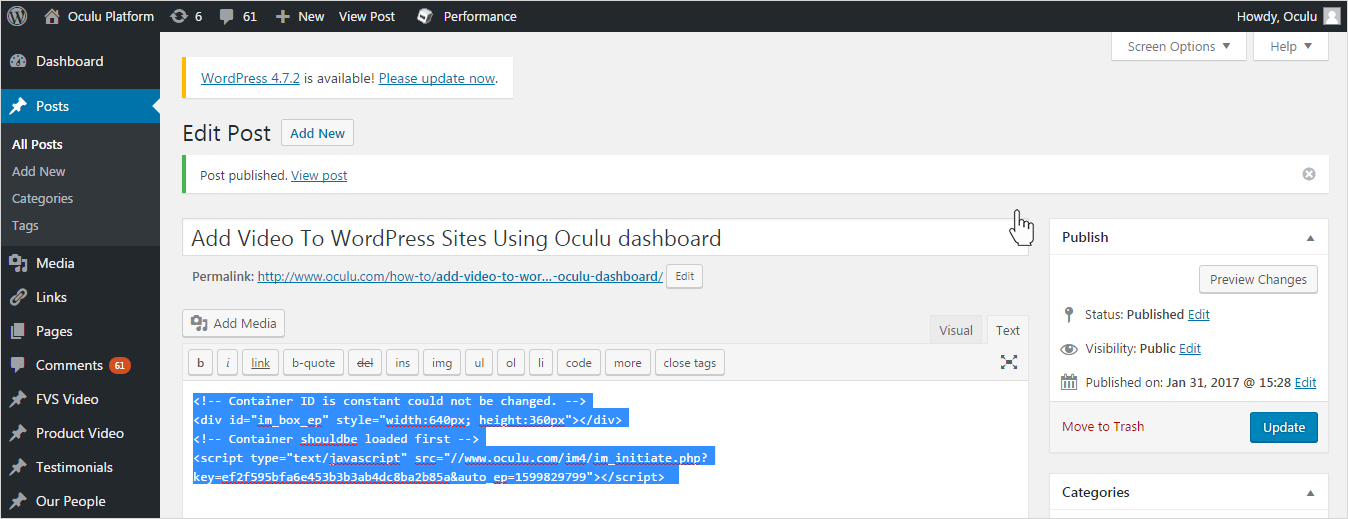
There are three display options: Overlay Player, Standard Embed and Lightbox Video. Click on “Get Code” for any of the three display options. Copy and paste the Div code and the Auto Play Script code onto the editing section you chose on WordPress. Be sure when pasting your code, to paste it into the “HTML” tab, not the “Visual” tab. After you paste your codes where you want them, click on “Update” to save the changes. You should now be able to see your video play on your site. If clicking “Preview Changes” doesn’t show the video be sure to double check if your video is up by clicking on the link to your site. Sometimes “Preview Changes” does not work quickly enough.
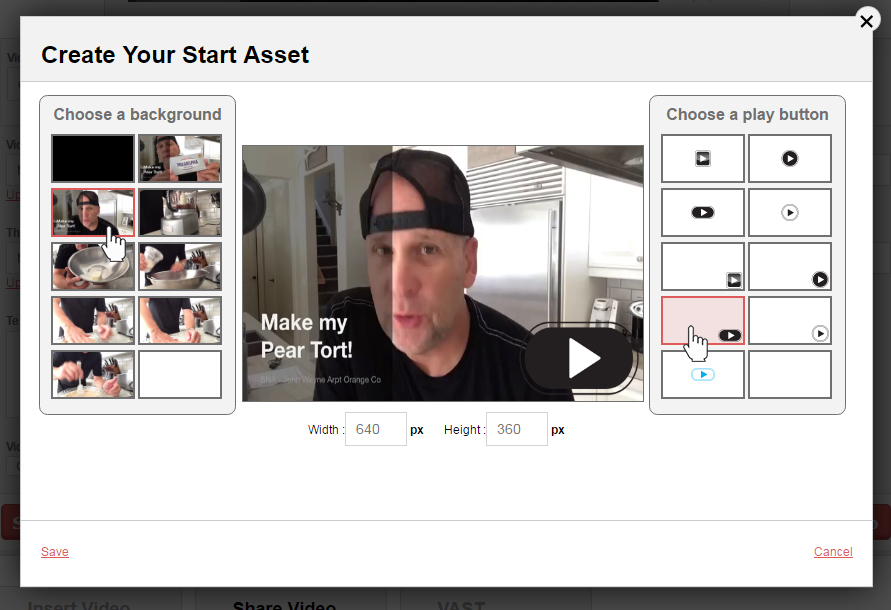
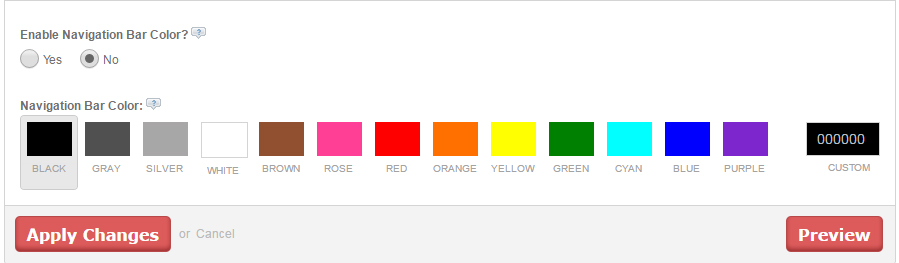
To add your own play button and thumbnail to your video, stay in the “videos” tab of Oculu and find the subheading “Start Asset URL.” Click on the link “Create your own” and choose your thumbnail and play button by clicking on one. Click on save to officially save your Start Asset. You do not need to paste any codes for this setting.
Reminder: If you want to add more than one video you will not need to add the Header Script code every time. Only one Header Script code should be pasted into your WordPress site. Once it is pasted in, you do not have to go through this step again. However, if you do happen to have videos from more than one company and you need to display them on your site, you will need to add more than one Header Script code. Please contact us and we will assist you to getting this done. Otherwise, Oculu’s settings will not allow for Header Scripts from multiple companies to be used on one site.
We hope this information get’s you accustomed to posting videos on your WordPress site using Oculu.


Hi,
It seems to be so easy with wordpress. I have my site with Joomla installed. How shall I embed these codes there.
and Ihave a JWplayer embeded in it …will it clash with your codes..???
Thanks and hope to get a reply soon.
Segav
Hi Sagav-
Thanks for the great question! Yes, Oculu code can be used on Joomla sites in much the same way that it is done with WordPress. If you have a JW player on your site our code should also not clash with this player. Please feel free to sign up for a free trial and get started with using Oculu. If you should have any questions or need assistance we can help out! Simply email us at: support@oculu.com
Thanks!
Taylor